The TradingView MCP is TradingView’s official server that lets you connect Claude to TradingView — or ChatGPT, or Codex — through a single address: https://mcp.tradingview.com/mcp. In public beta since September 16, 2026, and reserved for paid plans (Essential or higher), it gives your AI access to your watchlists, your alerts, the screener, prices, news and the economic calendar. It places no orders and, unlike the open source bridges, needs neither TradingView Desktop nor a server to install: paste a URL, grant one authorization, and your AI is connected to your TradingView account.
This guide follows our video tutorial step by step, then adds everything an eight-minute video can’t cover: the plan you really need, the 35 tools in detail, family by family, the beta’s limits, your account’s security, common roadblocks and a series of ready-to-copy prompts.
The key takeaways:
- The official TradingView MCP comes down to one address:
https://mcp.tradingview.com/mcp, which you add as a connector in Claude, ChatGPT or Codex. - You need a paid TradingView plan (Essential or higher): free trials don’t include access.
- The connection goes through TradingView’s official page (OAuth): your password never passes through the AI and there’s no API key to copy.
- 35 tools in 9 families: 25 read tools (prices, screener, news, fundamentals, calendars) and 10 write tools (watchlists and price alerts).
- It can’t see your chart, doesn’t write Pine Script and places no orders.
- Current limits: delayed market data during the beta, about 100 calls per minute and a possible daily cap.
Prefer video? The full tutorial is waiting for you at the end of the guide: eight minutes, from installing in ChatGPT and Claude to the first scan.
TradingView MCP: What Is It, Exactly?
MCP (Model Context Protocol) is an open protocol, published by Anthropic in late 2024 and since adopted by ChatGPT, Codex and many other tools. The analogy we use in the video says it best: it’s your AI’s USB port. On one side, the assistant; on the other, a piece of software that exposes “tools” — read a watchlist, run the screener, create an alert. The protocol translates between the two.
The TradingView MCP is therefore a server, hosted by TradingView, that makes part of the platform available to your AI. When you write “Using TradingView, show me my watchlists”, the AI picks the right tool, the server runs it on your account and sends back the result. You stay in the conversation; the AI does the back-and-forth.
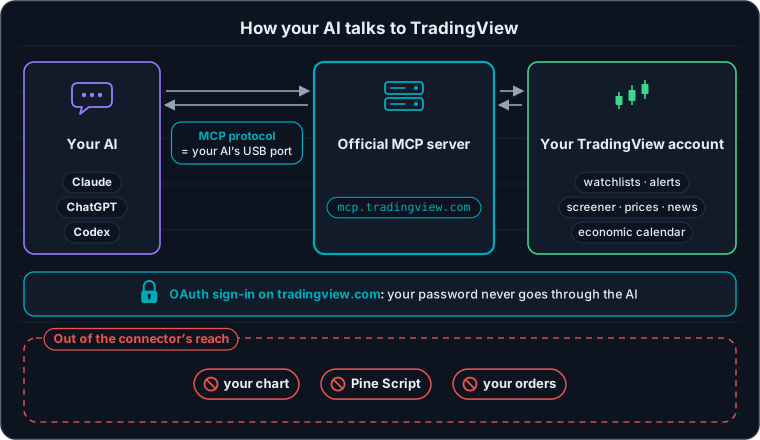
Your AI on one side, your TradingView account on the other: the official server bridges the two — and some doors stay closed.
What sets it apart from what existed before is the word official. Until now, connecting an AI to TradingView mostly meant open source bridges that drive the TradingView Desktop app from your computer — that’s the setup we used in our first tutorials, still detailed on our AI trading page. The official server runs on TradingView’s side: it works in the browser, on mobile, on Mac and PC alike, and there’s no server to install.
What You Need Before You Start
Two accounts come into play: your TradingView plan, which unlocks access to the server, and your AI plan, which may or may not accept custom connectors.
| Side | What you need | Good to know |
|---|---|---|
| TradingView | Essential, Plus, Premium or Ultimate | Free trials and the Basic plan don’t include MCP access. Essential starts at $12.95 per month billed annually (price shown in late September 2026; taxes may apply depending on your country). |
| Claude | All plans, including the free one | On the free plan you get a single custom connector: TradingView’s can be that one. |
| ChatGPT and Codex | The desktop app (the path TradingView documents) | On the web, MCP connectors go through developer mode, reserved for the Plus, Pro, Business, Enterprise and Edu plans. Access from a free ChatGPT account isn’t confirmed. |
| Claude Code, Codex CLI | The tool installed on your machine | One command is enough (see below). |
Any other client that supports the Streamable HTTP transport and OAuth 2.1 authentication also works, according to TradingView’s documentation. The documentation for Cursor and Gemini CLI says they handle this kind of server, even though TradingView doesn’t mention them and we haven’t tested them. In every case, TradingView Desktop isn’t needed: everything happens between your AI and TradingView’s servers.
Installing the TradingView MCP, Step by Step
Whichever assistant you use, the process comes down to four steps: open the settings, paste the name and URL, authorize access, then test.
Be careful with the address: copy it from this guide, with the dot between “mcp” and “tradingview” — https://mcp.tradingview.com/mcp. An address without that dot points to a completely different domain, which doesn’t belong to TradingView: never authorize it.
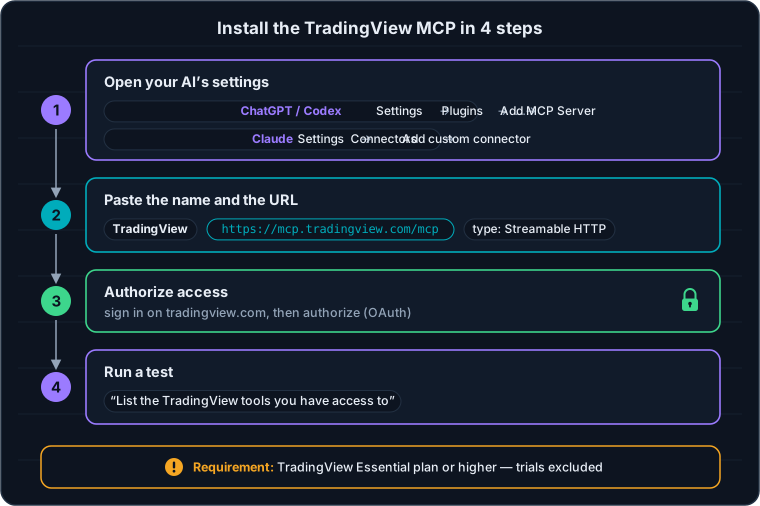
Four steps, two minutes: exactly the path the tutorial follows.
Connect ChatGPT or Codex to TradingView (Desktop App)
- Open Settings → Plugins, then Add → MCPs → Add → Add MCP Server. The exact wording changes from one version of the app to the next: if you don’t see “Plugins”, look for the section devoted to MCP servers.
- Fill in the form: name TradingView (the name is up to you), type Streamable HTTP, URL
https://mcp.tradingview.com/mcp. Save. - Go back to the MCP list, find TradingView and click Authenticate. A TradingView page opens: sign in and authorize access.
- Start a new conversation and run the test below.
The tutorial’s tip: sign in to TradingView in your browser before you click Authenticate. Authorization then comes down to a single click.
Connect Claude to TradingView (Web, Desktop, Mobile)
- Open Settings → Connectors (depending on your version: Customize → Connectors, then the “+” button), and choose Add custom connector.
- Paste the URL
https://mcp.tradingview.com/mcpand give it a name, for example TradingView. Leave the advanced settings empty: TradingView doesn’t need them. Click Add. - Click Connect, sign in to TradingView and authorize access.
- In a conversation, check that the connector is active (“+” button at the bottom of the input box → Connectors), then run the test.
TradingView documents this connector for Claude on the web, the desktop app and mobile. It’s best to add it from the web or the desktop app — adding it from mobile is still in beta at Anthropic. On a Team or Enterprise plan, the organization owner adds the connector first; each member then enables it for themselves.
From the Command Line: Claude Code and Codex CLI
If you already work on the command line, one line is enough, then you authorize access in the browser:
# Claude Code
claude mcp add --transport http mcp-tradingview https://mcp.tradingview.com/mcp

# Codex
codex mcp add tradingview --url https://mcp.tradingview.com/mcp
In Claude Code, type /mcp afterwards to start the authorization. By default, the server is only available in the current project: to have it in all your projects, put the --scope user option before the server name (claude mcp add --transport http --scope user mcp-tradingview https://mcp.tradingview.com/mcp). If the browser redirect fails, paste the full callback URL into Claude Code. On the Codex side, authorization opens in the browser, then you start a new task.
The First Test
To check that everything is plugged in, simply ask your AI this question:
List the TradingView tools you have access to.That’s what we do in the video: Claude answers with the list of the 35 tools, grouped by theme. If your AI asks your permission to use a tool, accept — a read changes nothing. A second, more concrete test: “Use TradingView to show me my watchlists.” You should see your lists, with their exact names.
The 35 Tools of the TradingView MCP, Family by Family
In the tutorial, Claude sums up its tools in seven big blocks. TradingView’s official documentation, for its part, sorts them into nine families — that’s the breakdown we use here, since it lines up with the documentation, where each tool is marked read-only or write.
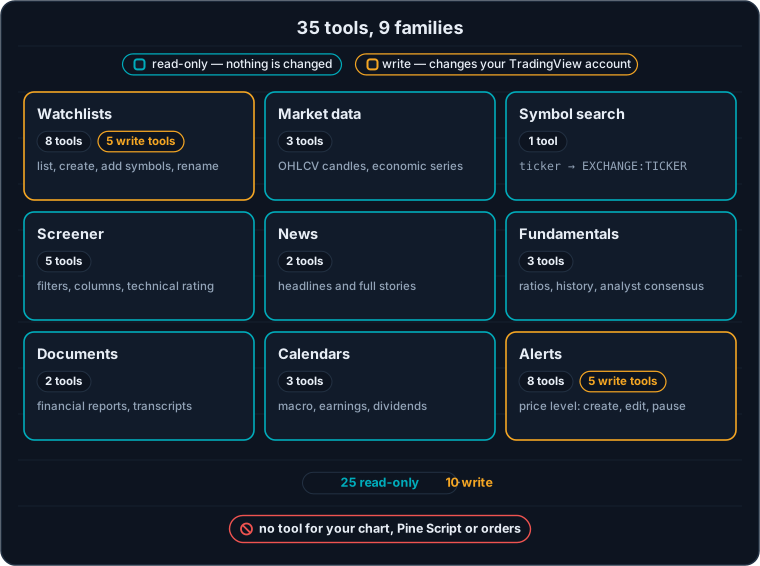
Nine families, only two of which can modify your account: watchlists and alerts.
| Family | Tools | Example tool | What you can ask |
|---|---|---|---|
| Watchlists | 8 (including 5 write tools) | create_watchlist | List your watchlists, read their contents, create new ones, add or remove symbols, rename, delete |
| Market data | 3 | get_ohlcv | OHLCV candles from 1 minute to 1 month (up to 5,000 per call), economic series such as US inflation |
| Symbol search | 1 | search_symbols | Find the right symbol in EXCHANGE:TICKER format from a name or a ticker |
| Screener | 5 | run_screener | Filter a market (crypto, US stocks, forex, futures…), read any screener column, the technical rating on a timeframe |
| News | 2 | get_news | The latest headlines on an asset, then the full text of a story |
| Fundamentals and forecasts | 3 | get_financials | Ratios (P/E, margins, ROE…), quarterly or annual history, analyst consensus |
| Documents | 2 | get_documents | Filed financial reports (10-K, 10-Q) and earnings call transcripts |
| Calendars | 3 | get_economic_calendar | Economic calendar (since 2003), earnings calendar, dividends |
| Alerts | 8 (including 5 write tools) | create_alert | Create an alert on a price level, edit it, pause it, restart it, review the history of triggers |
In total, as of September 30, 2026: 25 read-only tools — they never modify your account — and 10 write tools, all concentrated on watchlists and alerts. No family touches the chart, Pine Script or orders: those tools simply don’t exist in the official server.
The 10 Tools That Modify Your Account
- Watchlists:
create_watchlist,update_watchlist,add_to_watchlist,remove_from_watchlist,delete_watchlist. - Alerts:
create_alert,update_alert,stop_alerts,restart_alerts,delete_alert.
These are the ones worth keeping on manual approval in your AI (see the security section): deleting a watchlist or an alert can’t be undone with one click.
What You Can Really Do with It: 6 Use Cases
1. Scan the Market and Save the Result to a Watchlist
This is our favorite use case, the one at the end of the tutorial. We run a scan with one of our usual prompts, limiting the search to the assets available on OKX Europe — the broker we use, which connects directly to TradingView. The AI queries TradingView’s data, keeps the assets that pass the filters, then creates the watchlist itself in your TradingView. All that’s left is to open it.
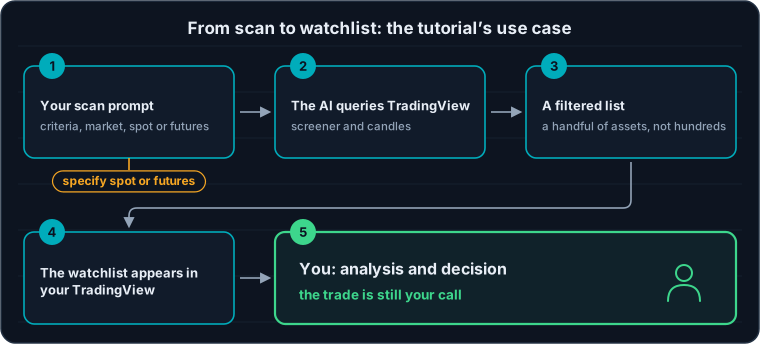
The AI does the searching; the analysis and the trade decision stay yours.
A lesson from the tutorial: specify spot or futures. With no instruction, our scan went for spot pairs. That wasn’t a problem, since spot moves are reflected in perpetual contracts, but you might as well get the list you’re actually going to trade straight away. And as the Captain says in the video: “After that, it’s up to us to decide how we’re going to pull the trigger on a trade.”
2. Use the Screener in Plain English
No more setting filters one by one: you describe what you’re looking for. TradingView’s screener covers crypto, US stocks, forex, futures, bonds and CFDs, among others, and offers presets (breakout with volume, relative strength, new highs…). Always specify the market: with no instruction, the screener defaults to US stocks. A query can return up to 1,000 rows — in practice, ask for a sort and about twenty results; it’s easier to read.
3. Review Your Trades for Your Journal
With the historical candles, you can ask your AI what the price did after your entry or your exit: how far it went, whether it hit your stop, how long it took. It’s a real time-saver for keeping an honest trading journal — and for checking a strategy idea on a few cases before going further.
4. Create and Manage Your Price Alerts
The AI can set an alert on a level — your stop loss, a resistance, yesterday’s high — edit it, pause it, or review the alerts triggered over the past few days. Two practical details: by default, an alert created this way expires after 30 days and notifies you through a mobile push notification and a pop-up, not by email (say so if you want something else). And the tool only accepts a price condition: an alert on the RSI or on a moving average has to be created directly in TradingView, for now.
5. Prepare Your Macro Week
The economic calendar and the economic series are accessible: dates and importance of CPI releases, US jobs data and rate decisions, with a history going back to 2003. Enough to prepare your sessions around high-impact announcements — an FOMC meeting, for example — without opening five different sites.
6. Dig into a Company’s Earnings
On the stock side, the server gives access to fundamentals, analyst consensus, the earnings calendar and even filed reports and earnings call transcripts. Your AI can summarize a quarterly report or compare two companies using TradingView’s figures, rather than answering from memory. News stories arrive in English by default: simply ask your AI to summarize them in the language of your choice.
10 Prompts to Copy and Paste
These prompts draw on the uses shown in the tutorial. Adapt the watchlist names and price levels to your own.
- “Using TradingView, list the cryptos in the screener whose volume today is more than twice their 10-day average, sorted by change.”
- “Using TradingView, calculate the Choppiness Index (14) on the 4h timeframe for the assets in my Crypto watchlist and keep the ones above 60.”
- “In my TradingView, create a watchlist called 4h Scan with these assets, as perpetual contracts.”
- “Using TradingView, get the 15-minute candles for OKX:BTCUSDT.P from yesterday afternoon and tell me what the price did after my 2:30 p.m. entry (Paris time).”
- “Create a TradingView alert if OKX:BTCUSDT.P falls back below $100,000: that’s my stop level. Also notify me by email.”
- “Using TradingView, which high-impact macro announcements are scheduled this week in the United States?”
- “List my TradingView alerts triggered over the last 7 days.”
- “Using TradingView, compare BTC, ETH and SOL over the last 30 days: performance, volume and daily technical rating.”
- “Using TradingView, which S&P 500 companies report earnings this week, and what is the expected consensus?”
- “Using TradingView, summarize NVIDIA’s latest quarterly report in five points.”
The Choppiness Index in the second prompt doesn’t exist as a tool: the AI calculates it itself from the candles. That’s the strength of the setup — your AI combines raw data to answer a question the screener alone can’t ask. Still, check the result on a chart or two: a calculation done by an AI can be wrong.
What the TradingView MCP Doesn’t Do
The official server has a precise scope. It can’t see your chart, draws nothing, doesn’t write Pine Script and places no orders. For the chart and Pine Script, two other tools exist, complementary to the MCP (neither one places orders):
- The open source bridge (for example the tradesdontlie/tradingview-mcp repository, not affiliated with TradingView) drives the TradingView Desktop app through its debug port. Longer to set up, it reads your chart and writes, compiles and fixes Pine Script indicators — that’s the setup we used in our first tutorials, detailed in the “Claude × TradingView Desktop” tab of our AI trading page.
- AI Copilot, announced by TradingView on September 28, 2026, is an assistant built directly into the charts, on the web and the desktop app. It can write and apply Pine Script, draw levels, and create alerts and watchlists. It’s a separate paid add-on, on top of an Essential or higher plan.
| Official MCP | Open source bridge | AI Copilot | |
|---|---|---|---|
| Where it runs | TradingView’s servers, inside your AI | Your computer, with TradingView Desktop | Inside the TradingView charts |
| Setup | A URL to paste | Terminal, Node.js, debug port | A paid add-on |
| AI used | Claude, ChatGPT, Codex… | A local MCP client (our setup: Claude Code) | TradingView’s built-in assistant |
| Reads your chart | No | Yes | Built into the chart |
| Pine Script | No | Yes | Yes |
| Places orders | No | No | Not announced |
You can plug in the official MCP and the open source bridge at the same time: one works on your account and your data, the other on your chart. Worth knowing: the bridge’s repository itself warns that using it may conflict with TradingView’s terms of use, whereas the official server is provided by TradingView.
The Beta’s Limits, and How to Work Around Them
- Delayed data. TradingView says so itself for the beta, without specifying the delay. For your scans, favor the 4h and daily timeframes rather than the 1-minute or 15-minute.
- About 100 tool calls per minute per user, with a possible daily cap. A scan of hundreds of assets across several timeframes can hit the limit: start with a watchlist of a few dozen assets.
- Per-call caps: 5,000 candles, 50 symbols for a batch read, 1,000 screener rows. The AI splits requests up on its own, but a precise prompt is faster.
- Tools that are still being refined, by TradingView’s own admission. If a result looks odd to you, ask your AI which tool it used and with what parameters.
Two habits make all the difference. Start your requests with “Using TradingView” or “Use TradingView”: otherwise, your AI may fetch its data elsewhere, on the web or from an exchange. And name symbols in TradingView format — OKX:BTCUSDT for spot, OKX:BTCUSDT.P for the perpetual — whenever the trading venue matters.
Security: What Your AI Can Touch, and What It Can’t
The connection relies on OAuth 2.1, the standard behind the “Sign in with…” buttons: you sign in on TradingView’s page, then authorize access. Your AI receives an access token, never your password, and you have no API key to copy or store.
- Keep an eye on the write tools. Creating, editing or deleting a watchlist or an alert really changes your account. In developer mode on the web, ChatGPT asks for confirmation by default for these actions; in Claude, you can set each tool to “Needs approval” rather than “Always allow”. Whatever tool you use, read what your AI is about to do before you confirm.
- What you ask goes through your AI. Your prompts and the data sent back are processed by Claude, ChatGPT or Codex, under their own terms. Don’t put in anything you wouldn’t share with them.
- To cut off access, remove the connector in your AI (in Claude: Settings or Customize → Connectors → Remove; in ChatGPT or Codex: remove the server from the MCP list; in Claude Code:
/mcp, then Clear authentication). As of late September 2026, TradingView’s documentation doesn’t describe a revocation page in your account. - Only one server is official:
mcp.tradingview.com. Third-party extensions and services also use the TradingView name: always check the exact domain before authorizing anything. The authorization page opens on www.tradingview.com, and there is never a file to download: if a site offers to “install the TradingView MCP,” walk away.
Troubleshooting: Common Roadblocks
| Symptom | Likely cause | Solution |
|---|---|---|
| Authorization fails or access is denied | Account on a free trial or the Basic plan | Upgrade to Essential or higher: trials don’t include the MCP |
| Can’t add the connector in Claude | Free plan, with a custom connector already in place | Remove the other connector, or upgrade to a paid plan |
| No MCP section in ChatGPT | Web version without developer mode, or a renamed menu | Use the desktop app, or enable developer mode on a compatible plan |
| The connector is installed, but the AI doesn’t use it | Connector disabled in the conversation, or a request that’s too vague | Enable it via the “+” button, then start the prompt with “Using TradingView” |
| Nothing happens after adding it in ChatGPT | Authentication step skipped | Click Authenticate in the MCP list |
| Symbol not found or wrong trading venue | Ambiguous ticker | Give the full symbol (EXCHANGE:TICKER) or ask for a symbol search |
| The AI refuses an alert on an indicator | The tool only accepts a price level | Create the RSI or moving average alert by hand in TradingView |
| The AI stops mid-scan or mentions “too many requests” | Server limit (about 100 calls per minute) or a possible daily cap | Reduce the list of assets or timeframes, wait a minute (or until the next day if it’s the daily cap), then resume |
| The connector worked yesterday but not today | Authorization expired or revoked, or TradingView plan expired | Click Connect again (Claude) or Authenticate (ChatGPT); on the command line, /mcp or codex mcp login tradingview; check your plan |
| An alert’s webhook is rejected | Plan without webhooks, or two-factor authentication disabled | Enable 2FA on TradingView and check that your plan includes webhooks |
Frequently Asked Questions about the TradingView MCP
Is the TradingView MCP free?
The server itself isn’t billed separately, but it’s reserved for paid TradingView plans: Essential, Plus, Premium or Ultimate. Free trials and the free Basic plan don’t include it. On the AI side, Claude’s free plan is enough, with one custom connector.
What is the TradingView MCP URL?
The official address is https://mcp.tradingview.com/mcp, with a dot between “mcp” and “tradingview”. It’s the only one to paste into Claude, ChatGPT or Codex: an address without that dot doesn’t belong to TradingView, so never authorize it. The official documentation is at tradingview.com/mcp/docs.
Does the TradingView MCP work with ChatGPT?
Yes. TradingView documents the installation in the ChatGPT and Codex desktop apps: Settings, Plugins, adding an MCP server over Streamable HTTP, then authentication. On the web, MCP connectors go through developer mode, reserved for the Plus, Pro, Business, Enterprise and Edu plans.
Can the TradingView MCP place orders?
No. None of its 35 tools places an order, and it doesn’t touch the trading panel. It reads data and can create or edit watchlists and price alerts: execution stays entirely on your side, with your broker.
Can the TradingView MCP write Pine Script or read my chart?
No, the official server has no tool for the chart or for Pine Script. For that, you need either an open source bridge that drives TradingView Desktop, or AI Copilot, the assistant built into the charts that TradingView announced in late September 2026 as a paid add-on.
Is the TradingView MCP data real-time?
No, not during the beta: TradingView states that market data is delayed, without specifying the delay. The server is therefore suited to research, scans and preparation, not to tick-by-tick monitoring of an open position.
What’s the difference between the official TradingView MCP and the “tradingview-mcp” on GitHub?
Several GitHub repositories are named tradingview-mcp, and none is affiliated with TradingView. The best-known ones, such as tradesdontlie/tradingview-mcp, drive the TradingView Desktop app through its debug port and can read the chart or write Pine Script; others only use public data. The official MCP runs on TradingView’s side, without TradingView Desktop, and takes two minutes to connect.
Do I need an API key for the TradingView MCP, and is it risky for my account?
No, there’s no API key: the connection goes through OAuth on TradingView’s page, and the AI never sees your password. You can cut off access at any time by removing the connector. What you really need to watch is the 10 write tools on watchlists and alerts: keep them on manual approval and read each action before accepting.
Our Verdict on the TradingView MCP
Is it essential? No. Is it useful? Clearly, as soon as your routine includes some repetitive research: scanning a list of assets, keeping watchlists up to date, preparing a macro week, reviewing what the price did after a trade. The official server’s great merit is its simplicity — two minutes to set up, nothing to install on the TradingView side, and it works the same way in Claude as in ChatGPT.
Just keep the hierarchy the right way around: the AI searches, sorts and files; your trading plan decides. And since this is a beta, the tool list may still change — every so often, ask your AI to list its TradingView tools to see today’s version. If you’re just getting started on the platform itself, begin with our complete TradingView guide; and to go further with AI, our other content is gathered on the AI trading page.
The Video Tutorial: Install the TradingView MCP in 2 Minutes
To see it all in action: the installation in ChatGPT, then in Claude, a tour of the available tools, and our favorite use case — a market scan that saves its result straight into a TradingView watchlist. The tutorial is in French, but YouTube can generate English subtitles for it.

- 00:24 — installation in ChatGPT and Codex
- 02:02 — installation in Claude
- 03:03 — the available features
- 05:52 — the example: from scan to watchlist
Informational guide, up to date as of September 30, 2026 — server provided by TradingView, in public beta; Captain Trading is not affiliated with TradingView, Anthropic or OpenAI. Official documentation: tradingview.com/mcp/docs. Not investment advice.
Every guide here is free. Browse the full course and join a community of traders who share ideas every day.