TradingView’s official MCP got people talking in September, but it comes at a price: an Essential plan at minimum, free trials excluded. For crypto, there’s a free option, and it comes straight from an exchange: the OKX MCP. OKX publishes its own MCP server, the Agent Trade Kit: open source, free, and able to give your AI prices, candles, funding, open interest, nearly 70 technical indicators and a screener — without even opening an account with OKX.
Connected to your account, the same server goes further: balance, positions, history, news and the economic calendar, then, if you decide to, orders — first on the demo account, with no real money. That’s where the real questions lie: which permissions to give the API key, which OKX site to choose when you live in Europe (EEA), and how to keep control of every order.
This guide covers everything, in order: what the OKX MCP does, the ten-minute installation on PC or Mac, the requests that work without a key, connecting your account in read-only mode, switching to demo and the limits to know before you entrust it with anything. Every command has been checked against the official documentation and source code, version 1.4.8, released on September 23, 2026.
The Key Takeaways
- The OKX MCP — the “Agent Trade Kit” — is OKX’s official MCP server: open source (MIT license) and free, it runs on your own computer, and your API keys never leave it.
- With no API key, your AI can already read OKX’s public data: prices, candles going back to 2021, order book, funding, open interest, nearly 70 technical indicators and a screener.
- It’s the free crypto counterpart of the official TradingView MCP, which requires an Essential plan; the trade-off is that it’s limited to OKX’s markets and handles neither watchlists nor alerts.
- It’s a local server: it works with Claude Desktop, Claude Code, Cursor, VS Code and Windsurf, but not with claude.ai in the browser, the mobile app or ChatGPT.
- Always specify
--modules: without this option, the setup command connects all 167 tools in the kit, orders included. - In Europe (EEA), your account is tied to OKX’s European site, my.okx.com: the API key is created there and the server is set to the “eea” site.
- For the API key: Read only to start with, Read + Trade to place orders, and never the Withdraw permission, which OKX’s own documentation also advises against.
- Test orders in demo mode, with a separate key. When trading live, your AI prepares and executes, but you’re the one who approves every call — and who bears the risk.
What Is the OKX MCP?
An MCP (Model Context Protocol) is your AI’s USB port: on one side the assistant, on the other a piece of software that exposes “tools” — read a price, calculate an RSI, place an order — and the protocol translates between the two. OKX’s server is officially called the OKX Agent Trade Kit. OKX publishes it on GitHub, in its official okx/agent-trade-kit repository, and on npm under the name @okx_ai/okx-trade-mcp.
The kit contains two independent programs: okx-trade-mcp, the MCP server your AI calls, and okx, a command-line tool you’ll mainly use to save your keys. The server runs locally, launched by your AI application like a small background program: no intermediary cloud service, no third-party relay. It talks directly to OKX’s API, and your credentials stay in a file on your computer, ~/.okx/config.toml.
Its 167 tools are organized into 11 modules, and you choose which ones your AI sees, at launch, with the --modules option:
| Module | What it lets you do | API key required |
|---|---|---|
market | Prices, candles, order book, funding, open interest, indicators, screener | None |
account | Balance, positions, past orders, fees, log of your AI’s calls | Read |
news | Crypto news, per-coin sentiment, economic calendar | Read |
smartmoney | Leaderboard and positions of OKX’s best-performing traders | Read |
spot | Spot orders, conditional orders, OCO | Read + Trade |
swap | Perpetuals: orders, positions, leverage, trailing stop | Read + Trade |
futures | Futures contracts with an expiry date | Read + Trade |
option | Options, with the Greeks | Read + Trade |
bot | Grid and DCA bots | Read + Trade |
earn | Savings, staking, dual investment | Read + Trade |
event | Event contracts (yes/no, up/down) | Read + Trade |
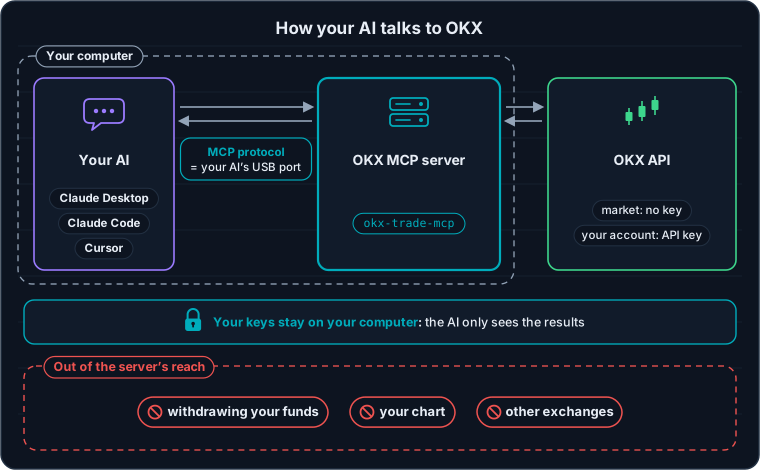
The server runs on your own machine: your AI only receives the tools’ results, never your keys.
Without an API Key: Everything Your AI Already Sees
This is the OKX MCP’s main strength: launched with only the market module, it needs no account, no key and no configuration. OKX’s market data is public, and the server delivers it to your AI in real time. In practice, that’s about twenty tools:
- Prices and order book: last price, 24-hour volume, best bid and ask prices, order book depth, latest trades, mark price and index prices.
- Candles: from one minute to one month (1m, 5m, 15m, 1H, 4H, 1D, 1W, 1M…), with a history going back to 2021.
- Derivatives: current and historical funding rates, open interest by contract and its history, the price spread between two instruments — spot against the perpetual, for example.
- Technical indicators: nearly 70 indicators calculated by OKX, from RSI and MACD to Bollinger Bands, ATR, ADX, Supertrend, VWAP, OBV and Ichimoku lines.
- Screener: sorts spot, perpetual and futures markets on multiple criteria — 24-hour change, market cap, volume, funding, open interest, listing date — plus a ranking of the biggest open interest changes over a given period.
Two details will spare you plenty of surprises. Indicators are calculated on 3-, 5- or 15-minute, 1-hour, 4-hour, 12-hour, 1-day, 3-day or 1-week timeframes — not on a 1-minute one — and the tool defaults to the 1-hour timeframe if you don’t give one: always specify your own. As for the screener, it sorts spot, perpetual and futures markets, but not options.
OKX MCP or TradingView MCP: Which One to Choose?
The two servers differ in both price and scope. The official TradingView MCP runs on TradingView’s side, connects with a pasted URL and covers all of the platform’s markets. The OKX MCP runs on your own computer and only knows OKX’s markets, but it costs nothing and goes deep into derivatives:
| OKX MCP | Official TradingView MCP | |
|---|---|---|
| Price | Free, open source | Essential plan or higher |
| Installation | Local server (Node.js) | A URL to paste |
| Applications | Claude Desktop, Claude Code, Cursor, VS Code, Windsurf | Claude (web, mobile, desktop), ChatGPT, Codex |
| Markets | Crypto on OKX: spot, perpetuals, futures, options | All TradingView markets |
| Data | Real time | Delayed during the beta |
| Funding and open interest | Yes, with history and screener | No |
| Indicators | Nearly 70, calculated on demand | Technical rating and candles |
| Watchlists and alerts | No | Yes, read and write |
| Orders | Yes, with a Trade key | No |
The two complement each other very well: nothing stops you from connecting both to Claude Desktop — TradingView for your watchlists and the other markets, OKX for funding, open interest and execution. Simply start each request with “Using OKX” or “Using TradingView” so your AI picks the right tool.
Installing the OKX MCP in Ten Minutes
You need the Claude Desktop app, on Windows or macOS — or Claude Code, Cursor, VS Code or Windsurf — plus Node.js, the engine that runs the server. Everything happens in a terminal: PowerShell on Windows, Terminal on Mac.
1. Install Node.js, Version 18 or Later
First check whether it’s already installed:
node -vIf the command shows v18 or later, move on to step 2. If not, install the LTS version from nodejs.org, or with a single command:
# Windows (PowerShell)
winget install OpenJS.NodeJS.LTS

# Mac (with Homebrew)
brew install node
Close and reopen your terminal after the installation, and run node -v again to check.
2. Install the OKX Kit
npm install -g @okx_ai/okx-trade-mcp @okx_ai/okx-trade-cliThe first package is the MCP server, the second the okx tool you’ll use to save your keys. Check with okx-trade-mcp --version: you should see a version number, 1.4.8 as of October 1, 2026. On Windows, if PowerShell refuses to run npm, run Set-ExecutionPolicy RemoteSigned -Scope CurrentUser once, then try again.
3. Connect It to Claude, in “Data-Only” Mode
okx-trade-mcp setup --client claude-desktop --modules marketThe command adds the server to Claude Desktop’s configuration file without touching the other MCPs already installed, and keeps a copy of the old file (.bak). For another application, replace claude-desktop with claude-code, cursor, vscode or windsurf.
The pitfall to avoid: never forget
--modules. Without this option, thesetupcommand connects all the modules: all 167 tools, orders, bots and transfers included. Without an API key, those tools fail; but if you ever add one, your AI would have control over everything. Start withmarket, and add the other modules one by one, when you really need them.
4. Restart Claude and Run the Test
Quit Claude Desktop completely — on Windows, right-click its icon near the clock, then Quit; on Mac, ⌘Q — and reopen it. In a new conversation, ask:
“Using OKX, give me the BTC-USDT price, the BTC-USDT-SWAP funding rate and its open interest.”
Claude asks your permission to use OKX’s tools: accept, as these are read-only calls and nothing is modified. To see everything the server can do, ask it: “List the OKX tools you have access to.” With the market module alone, the list fits in about twenty lines, and none of them places an order.
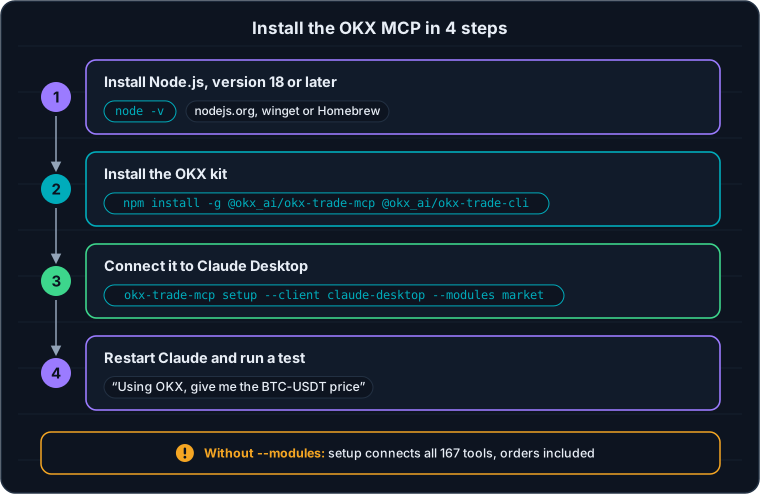
Four commands, and the --modules option you must never forget.
Not working? The three most common issues
- Claude doesn’t see any OKX tools: the application wasn’t fully closed. Quit it from its icon (or with ⌘Q on Mac), then reopen it.
- The terminal can’t find
okx-trade-mcp: the folder holding npm programs isn’t known to your terminal yet. Close it and reopen it; if that doesn’t fix it, reinstall the Node.js LTS version. - “Failed to spawn process” on Mac: Claude Desktop uses the system’s Node.js, not the one from a version manager such as nvm. Reinstall the kit with the system’s npm (
/usr/local/bin/npm install -g @okx_ai/okx-trade-mcp), then restart Claude.
Requests That Work Without a Key
Two habits make all the difference. First, start with “Using OKX”: otherwise, your AI may fetch its figures elsewhere, on the web or from another MCP. Second, name markets the way OKX names them: BTC-USDT for spot, BTC-USDT-SWAP for the perpetual, BTC-USD- followed by the expiry date (YYMMDD) for a futures contract. Here are some requests you can copy as is, with the tool your AI calls behind the scenes:
| Your request | Tool called |
|---|---|
| “Using OKX, rank the 10 USDT perpetuals with the highest funding, along with their open interest in dollars.” | market_filter |
| “Using OKX, which perpetuals have seen their open interest climb by more than 20% over the last 4 hours? Add the price change.” | market_filter_oi_change |
| “Using OKX, calculate the 14-period RSI and the Bollinger Bands (20, 2) on the 4H timeframe for ETH-USDT.” | market_get_indicator |
| “Using OKX, fetch the 1H candles for SOL-USDT-SWAP over 48 hours and describe the structure: highs, lows, volumes.” | market_get_candles |
| “Using OKX, show me the funding history for BTC-USDT-SWAP over 7 days.” | market_get_funding_rate |
| “Using OKX, summarize how the open interest of BTC-USDT-SWAP has evolved over the week.” | market_get_oi_history |
| “Using OKX, compare ETH-USDT and ETH-USDT-SWAP: what’s the average spread over a week?” | market_get_pair_spread |
| “Using OKX, which tokens were listed on spot over the last 30 days?” | market_filter |
Keep the hierarchy in mind: the screener finds, the AI summarizes, your trading plan decides. Extreme funding or a jump in open interest is information, not a reason to enter a position. And for CVD, which the OKX MCP doesn’t provide, our OI & CVD screeners remain free and open to everyone.
Connecting Your OKX Account in Read-Only Mode
With an API key, your AI also sees your account: balance, open positions, order history, fees paid. On top of that, the key unlocks two modules that require authentication, even though they only read: news — headlines, per-coin sentiment and the economic calendar, from CPI to the FOMC — and smartmoney, the leaderboard of OKX’s best-performing traders. Let’s start with a key that can’t change anything.
Create the Key on the Right Site
OKX runs on regional sites, and each account is tied to its own. Throughout the European Economic Area (EEA), it’s my.okx.com. Sign in, open your account’s API management page and create a key with these settings:
- Permission: Read only. You’ll add Trade later, on another key, if you want to place orders.
- Withdraw: never. The kit doesn’t need it, and OKX’s own documentation advises against it.
- IP address: if your connection has a static IP address, bind the key to that address: a stolen key would then be useless.
- Passphrase: a password of your choosing, specific to the key. Keep it with the key and the secret key: you’ll need it in the next step.
Save the Key on Your Computer
In the terminal, run the okx tool’s setup wizard:
okx config initIt asks you for the site (choose EEA), whether it’s a live or a demo key, then your key, your secret key and your passphrase, and writes it all to ~/.okx/config.toml — on Windows, C:\Users\your-name\.okx\config.toml. You can also write this file by hand; with a profile named “readonly”, it looks like this:
default_profile = "readonly"

[profiles.readonly]
site = "eea"
api_key = "your-api-key"
secret_key = "your-secret-key"
passphrase = "your-passphrase"
This file is your vault: don’t send it to anyone, never paste its contents into a conversation and, if you use Claude Code, which can open the files on your computer, never ask it to read that file. The server itself never passes your keys on to your AI: it uses them to sign its requests to OKX, and the AI only sees the results of the tools.
Reconnect the Server, with Two Locks
okx-trade-mcp setup --client claude-desktop --profile readonly --modules market,account,newsThen add the second lock, the --read-only option, which the setup command can’t write on its own. In Claude Desktop, open Settings → Developer → Edit Config and add it to the args line of the okx-trade-mcp-readonly server:
"okx-trade-mcp-readonly": {
  "command": "npx",
  "args": ["-y", "@okx_ai/okx-trade-mcp", "--profile", "readonly",
           "--modules", "market,account,news", "--read-only"]
}
Restart Claude and test it: “Using OKX, what’s my account balance, and what are my open positions?” With a read-only key and the --read-only option, you have two independent locks: the server no longer even offers write tools to your AI, and OKX would refuse any order coming from that key anyway.
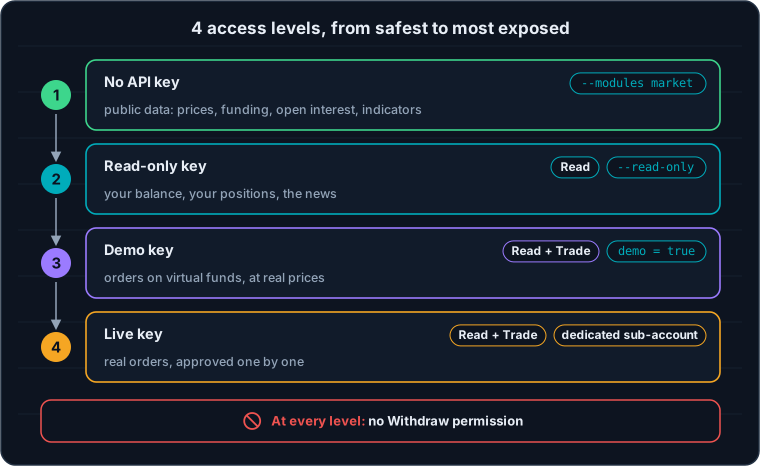
Four access levels: you only move up a step when the previous one is mastered.
Placing Orders: Demo First
OKX offers a simulated trading mode: virtual funds, real prices, no risk to your capital. The OKX MCP handles it natively, and that’s where every order placed by an AI should start.
- Create a demo key. On OKX, switch to Demo Trading mode and create an API key from within that mode, with the Read and Trade permissions. This key is separate from your live keys.
- Store it in a “demo” profile. Use
okx config initor do it by hand, adding the linedemo = trueto the profile: the server then sends all orders to simulated trading. - Connect it as a separate server.
okx-trade-mcp setup --client claude-desktop --profile demo --modules market,account,spot,swap, then restart Claude.
Then practice with a simple request:
“In demo mode on OKX, place a limit order to buy 0.01 ETH on ETH-USDT, 5% below the current price, then show me my open orders.”
Before executing, Claude shows you the tool being called and its parameters: instrument, side, order type, size, price. Read them carefully: this is where a mistake can still be caught. On perpetuals, size is counted in contracts, and one contract isn’t necessarily worth one unit of the crypto: ask your AI for the contract value and the dollar amount before approving. The rest — limit orders, OCO orders, trailing stops, setting your leverage — can also be handled in plain English.
In demo, the market tools keep reading real prices; on the other hand, news and savings products (Earn) aren’t available there. And whatever the mode, every call is recorded in a local log, in ~/.okx/logs/: “Using OKX, show me today’s tool call log” tells you exactly what your AI did — a good complement to your trading journal.
What About Live Trading?
Moving to live trading follows the same steps, with a Read + Trade key created outside demo mode. Three more rules apply:
- A dedicated account: an OKX sub-account where you leave only the amount you’re willing to put at risk. The kit handles several profiles, hence several accounts, each with its own key.
- Approve every order by hand: never grant permanent approval to a tool that places orders, and set your stop loss on OKX, not in the conversation.
- Small sizes first: start with amounts that make no real difference to your capital, long enough to see how your AI interprets your requests. Risk management can’t be delegated.
Security in Five Habits
- Install the right package. The only official one is
@okx_ai/okx-trade-mcp, published by OKX, whose code lives in theokxorganization on GitHub. Beware of copies and “improved versions” that ask for your keys. - Pin the version if you want stability. In the configuration,
@okx_ai/okx-trade-mcp@1.4.8in place of@okx_ai/okx-trade-mcpkeeps an update from changing your server’s behavior without you knowing. - Keep the web and your orders apart. A web page, a tweet or a news item can contain hidden instructions addressed to your AI: that’s prompt injection. Never mix an unknown source with tools that place orders in the same conversation.
- Check the numbers that matter. An AI can misread a result or confuse two markets. Ask it for the source and the time of each data point, and cross-check on OKX’s interface before making any decision.
- When in doubt, revoke. A key can be deleted in one click from OKX’s API management page: it’s immediate, and it cuts off your AI’s access, however it’s configured.
What the OKX MCP Doesn’t Do
- No other platforms: it only knows OKX’s markets — no stocks or forex, apart from the few tokenized stocks (stock tokens) listed on OKX.
- No CVD: for Cumulative Volume Delta and more granular derivatives data, you need a specialized tool such as Velo or Coinalyze.
- No charts: it draws nothing and doesn’t write Pine Script. To control your charts, use the open source bridge presented on our AI trading page.
- No browser or mobile: since it’s a local server, it doesn’t work on claude.ai in the browser, in the mobile app or in ChatGPT.
- No withdrawals: the kit has no tool to move funds out of OKX, only an internal transfer between your OKX accounts — and your key doesn’t have the Withdraw permission anyway.
- Not quite the same markets: without a key, the data comes from OKX’s global site, which lists slightly more instruments than the European site. A market visible in the screener isn’t necessarily open to your account.
Frequently Asked Questions
Is the OKX MCP really free?
Yes. The kit is open source, under the MIT license, and OKX charges nothing for the server or the market data, which you can access without an account. You only pay what you would pay anyway: OKX’s trading fees if you place orders, and your AI subscription, if you have one.
Do I need an OKX account to use the OKX MCP?
No, not for public data: launched with the market module alone, the server works without an account or an API key. You’ll need an account and a key to view your balance and positions, read the news and the economic calendar, or place orders.
Does the OKX MCP work with ChatGPT or claude.ai?
No. It’s a local server, launched on your computer by your AI application: it works with Claude Desktop, Claude Code, Cursor, VS Code, Windsurf and any other application that supports local MCP servers. ChatGPT, claude.ai in the browser and the mobile app only connect to remote servers, reachable through a URL.
Can my AI withdraw my crypto with the OKX MCP?
No. The kit contains no withdrawal tool: it’s limited to trading, viewing your account and internal transfers between your OKX accounts. And the API key you entrust to it must never have the Withdraw permission: even with a faulty tool, OKX would refuse the operation.
Where are my API keys stored?
In a file on your computer, ~/.okx/config.toml (C:\Users\your-name\.okx\config.toml on Windows). The server reads them to sign its requests to OKX, but never passes them on to your AI, which only sees the tools’ results. Protect this file like a password, and delete the key in your OKX account if you have the slightest doubt.
How can I test trading risk-free with the OKX MCP?
With OKX’s demo mode: create an API key from within simulated trading, save it in a profile that contains the line demo = true, and connect that profile as a separate server. Orders are then placed with virtual funds, at real prices. Only news and savings products remain unavailable in demo.
What’s the difference between the OKX MCP and the TradingView MCP?
The official TradingView MCP runs on TradingView’s side, requires an Essential plan or higher and covers all of the platform’s markets, with watchlists and alerts, but no orders at all. The OKX MCP is free, runs on your computer and is limited to OKX’s markets; in exchange, it gives you funding, open interest, nearly 70 indicators and, with a suitable key, order execution.
I live in Europe (EEA): which OKX site should I choose in the configuration?
The European site. Your account is tied to my.okx.com: your API key is created there, and the server profile is set with site = "eea", an option the okx config init wizard offers you. A key created on the European site doesn’t work on the global site: requests to your account fail there with an authentication error.
Every guide here is free. Browse the full course and join a community of traders who share ideas every day.